How to use Nano Banana for Photo Editing, it mean spending hours in apps like Photoshop, learning tools, layers, masks, and adjustments. But now, AI makes photo editing much faster. One of the newest tools people are talking about is Nano Banana, the nickname given to Google’s Gemini 2.5 Flash image model.
Table of Contents
Nano Banana is popular because it can edit photos using simple text prompts. You just upload your image, type what you want (like “remove pimples” or “change background to beach”), and it generates an updated version of the image.
Seedream 4.0 vs Nano Banana in AI image generation has exploded in the past year. What started as a fun way to generate random pictures has now become a serious tool for creators, marketers, bloggers, and even small businesses.
In this guide, you’ll learn what Nano Banana is, how to use it for editing photos, the best prompts, real use cases, and the pros and cons.
What is Nano Banana?
Nano Banana is the informal nickname used online for Google Gemini 2.5 Flash—especially its powerful image editing and generation features.
Unlike normal photo editors, Nano Banana is prompt-based. That means you don’t click tools—you describe the edit in text, and it does the work for you.
Why people love Nano Banana for photo editing
Nano Banana works really well in tasks like:
- Blending multiple styles in one image
- Changing backgrounds naturally
- Editing faces while keeping realism
- Keeping characters consistent
- Multi-turn editing (edit again and again without starting over)
- Generating different angles and perspectives
Best Prompt Formula for Better Results
Nano Banana works best when prompts follow a structure.
Recommended prompt format
Use this order:
- What to change
- What to keep unchanged
- Style/quality preference
- Optional: lighting or realism notes
Example:
“Replace the background with a modern office. Keep the person’s face, hairstyle, and clothes unchanged. Make it realistic with natural lighting.”
5 Best Use Cases of Nano Banana for Photo Editing
1) Basic Photo Adjustments (Brightness, Colors, Sharpening)
You can fix dull photos easily.
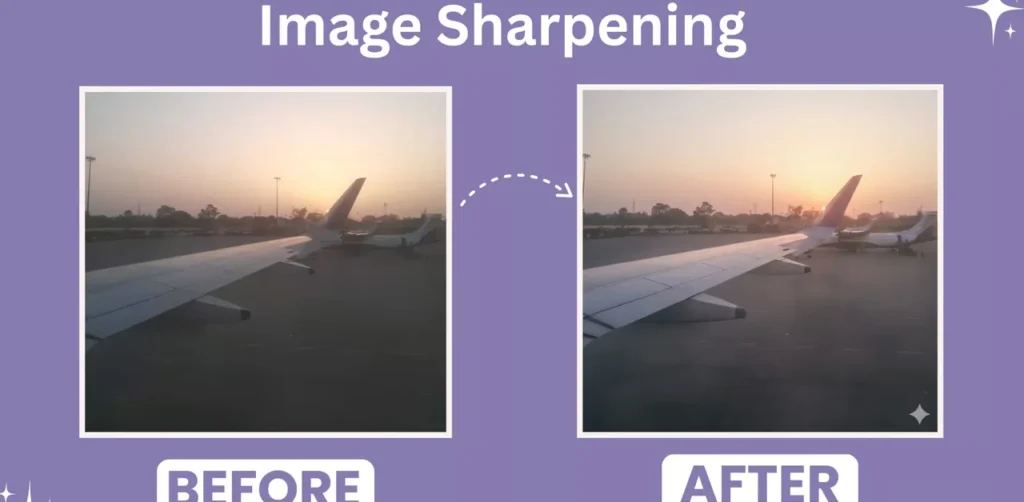
Try prompts like:
- “Increase brightness slightly and enhance contrast for a balanced look.”
- “Fix white balance and make colors natural.”
- “Sharpen the image to bring out fine details.”
- “Make the colors more vibrant so the food looks appetizing.”
⚠️ Note: Some images may return with minimal changes if the AI thinks the photo already looks “good”.
2) Crop and Focus Editing
Great for improving composition without manually cropping.
Prompt examples:
- “Crop the photo to focus only on the person in the white shirt.”
- “Zoom in slightly and center the subject.”
Sometimes AI may slightly modify faces while reframing. If that happens, add this:
“Do not change face or facial features.”
3) Retouching and Skin Fixes
Perfect for portraits, selfies, and headshots.
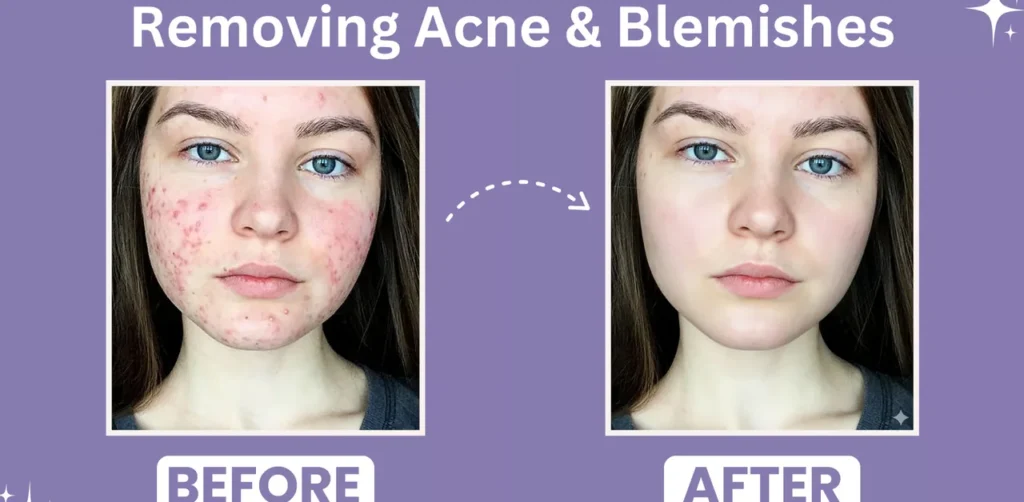
Examples:
- “Remove acne and blemishes. Smooth skin naturally but keep realistic texture.”
- “Remove dark circles and even out skin tone without making it plastic.”
- “Whiten teeth slightly, keep natural look.”
4) Makeup Editing (Natural Look)
Nano Banana can apply light or full makeup.
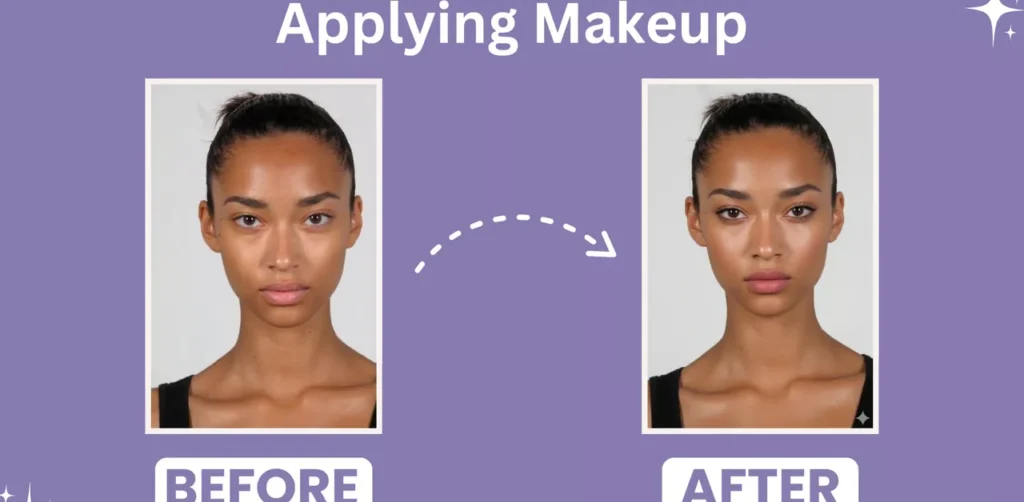
Prompt examples:
- “Apply natural makeup: soft lipstick, light foundation, neutral eyeshadow, subtle blush.”
- “Add bridal makeup with eyeliner and lipstick, keep face realistic.”
5) Hair Fixing and Hairstyle Change
You can tidy hair or try different hair looks.
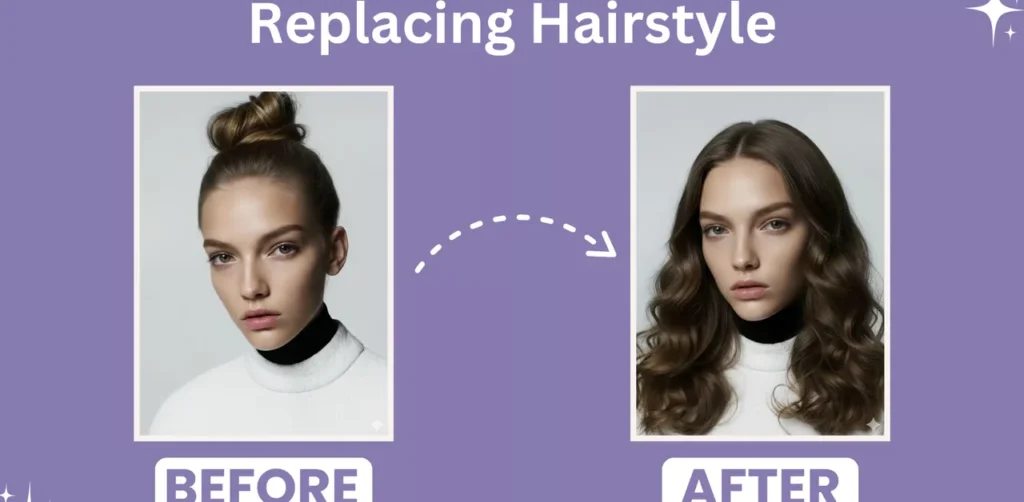
Prompt examples:
- “Tidy up stray hair and make hairstyle neat.”
- “Replace hairstyle with soft, flowy curls.”
- “Add side-swept bangs, keep face the same.”
Nano Banana Photo Editing Prompt Table (Copy-Paste)
| Task | Prompt (Copy & Use) |
|---|---|
| Brightness fix | Increase brightness slightly and enhance contrast for a balanced look. |
| Color correction | Fix white balance and make the colors look natural. |
| Sharpen photo | Sharpen the image to bring out fine details naturally. |
| Face retouch | Remove pimples and blemishes. Smooth skin naturally while keeping texture realistic. |
| Remove stray hair | Tidy up stray hair and make hairstyle neat. Keep it natural. |
| Background change | Replace the background with a beach at sunset. Keep the subject unchanged. |
| Remove object | Remove the unwanted object and fill background naturally. |
| Vintage filter | Apply a vintage film filter with subtle grain and warm tones. |
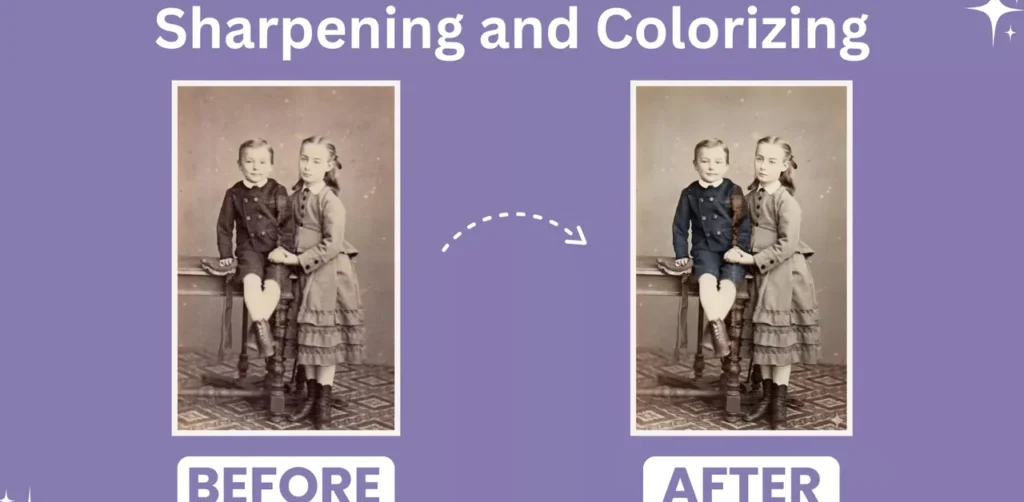
| Restore old photo | Restore this faded photo, remove scratches, and add realistic colors. |
Pros and Cons of Nano Banana for Photo Editing
Pros
- Free to use (in Gemini app)
- Very fast editing using simple prompts
- Great for beginners (no editing skills needed)
- Multi-turn editing makes refinement easy
- Strong for backgrounds, retouching, and creative edits
Cons
- Sometimes changes faces slightly
- Some edits may not apply (output looks same)
- Can miss small details in filters/effects
- Not a replacement for Photoshop for professional work
- Results depend heavily on prompt quality
Tips to Get More Accurate Outputs
Use these simple rules:
- Mention: “Keep face unchanged” if editing portraits
- Mention: “Realistic, natural lighting” for clean results
- For product photos, say: “eCommerce product photo style, white background”
- If output changes too much, say: “Only apply requested change, nothing else”
- Use multi-turn edits instead of rewriting everything
FAQs – Nano Banana Photo Editing
1. Is Nano Banana really free?
Yes, Nano Banana is available through the Google Gemini app, and image editing can be used for free (depending on region and Gemini features available).
2. Can Nano Banana replace Photoshop?
Not fully. For quick edits and casual content, it’s excellent. For professional design work, advanced retouching, and full control, Photoshop is still better.
3. Can I edit multiple photos together?
Yes. You can upload multiple images and ask it to blend, match style, or create consistent characters.
4. Why does Nano Banana sometimes change the face?
AI tries to “improve” realism. To reduce this, add:
“Do not change face, facial features, or identity.”
5. Is Nano Banana good for social media posts?
Yes. It’s one of the best uses—background edits, filters, styling, thumbnails, and fast enhancements.
Conclusion
Nano Banana (Gemini 2.5 Flash) is one of the easiest ways to edit photos using AI. Instead of learning complicated tools, you simply upload an image and write what you want to change. From brightness fixes and skin retouching to background replacement and creative effects, Nano Banana makes photo editing simple for everyday users.
If you create content for Instagram, blogs, product listings, or personal projects, it can save you a lot of time. And because it supports multi-turn edits, you can keep improving the same photo until it looks right.